How to Export TikTok Comments to CSV
To export TikTok comments to CSV, paste a full TikTok video URL into the comment workspace, select Capture, then choose CSV in the format selector and select Export after comments appear. The download contains 12 columns covering comment text, authors, engagement, available platform IDs, reply relationships, dates, and capture provenance.

This guide covers the comment export workflow within CommentTok’s TikTok Viewer, what the file contains, and how to prepare it for spreadsheet analysis. A successful download gives you the comments returned by that capture. It does not establish that you have every comment on the video.
Key Takeaways
- Capture a video’s comments before downloading; CSV is unavailable when there are no results.
- The export contains 12 fields, including IDs and dates when supplied by the source.
- Reply relationships are available when parent IDs are returned; browser-extension imports lack platform comment IDs and parent relationships.
- Keep an original copy, import IDs as text, preserve
captured_at, and record the source URL yourself.
Before you begin
Have a full TikTok video URL, a browser, and a spreadsheet application ready. Use the link to an individual video rather than a profile or search page. Open the video first to confirm it is the discussion you intend to review.
Decide what you want to learn before capturing. “Which product questions need an answer?” is a useful scope for a small comment set. A claim about the opinions of all viewers would require evidence this export cannot provide.
Step 1: Capture comments from the video
The first milestone is a result set in the workspace that you can inspect.
- Open the workspace and paste the full video link into the URL field.
- Select Capture and wait for the request to finish.
- Read the status message and check the returned video information.
- Inspect the comments before exporting, especially if the request reports an error or incomplete results.
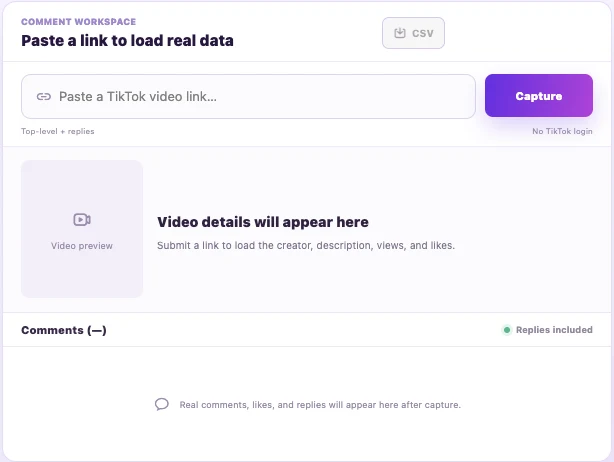
The current workspace requests up to 20 top-level comments per page and also requests replies, so 20 is not a ceiling on the total number of exported rows. Use Load more when available to request another page. It is enabled only when the service reports more data and returns a finite cursor that advances. Loaded pages are merged by available comment ID; CSV exports the accumulated rows. Extension imports do not enable pagination.
Check pagination status and any incomplete-reply warning before exporting. A stopped or unavailable next page does not prove complete coverage, and requesting replies does not guarantee complete threads. Treat the result as a captured set, whose size and contents can vary.
A video with a large displayed comment count may return fewer rows. Do not describe a file as “all comments” solely because the Capture operation finished. Repeating the request also does not prove that you have collected new rows or reached the end of the discussion.
Step 2: Download and preserve the CSV
Once results are present, choose CSV in the format selector in the workspace header, then select Export. Export requires CommentTok sign-in; if prompted, sign in in the new tab, return to the results and select Export again. The filename follows commenttok-<video-id>.csv, which helps associate the download with its source video.
Save the download in a folder for that video or research task. Keep this first file unchanged, then create a separate working copy for sorting, tagging, or removing rows. If you capture again later, add a capture date and time to your saved filename so the two files remain distinguishable.
The exporter writes UTF-8 text with a byte-order mark and quotes CSV values. These details help preserve characters and keep commas or quotation marks inside comments from being mistaken for column boundaries. It also prefixes an apostrophe to values beginning with formula-like =, +, -, or @ after optional whitespace/control characters, or beginning with a tab, carriage return, or newline. Keep these protected values as text when importing; CSV is not a spreadsheet workbook.
Which export format should I choose?
Keep CSV for this tutorial and the linked Google Sheets exercise. Other formats serve different review needs:
| Format | Best use | What to expect |
|---|---|---|
| CSV | Importing a flat table into spreadsheets or scripts | 12 columns; review text and number conversion during import |
| Excel (.xlsx) | Working directly in an Excel workbook | The same 12 fields, text IDs, numeric counts, frozen headers and a filter |
| Word (.docx) | Editing a readable comment document | Each comment followed by its available metadata; not a spreadsheet table |
| Sharing a paginated visual copy | Image-based pages; comment text cannot be selected or searched | |
| Text (.txt) | Reading or processing a plain-text copy | UTF-8 text with comment blocks and metadata; not comma-separated rows |
All formats use the currently loaded comment set. Changing the format does not fetch more comments, restore missing IDs, or reconstruct reply relationships. The historical screenshot above shows the older CSV control; the current selector is beside Export. A download-started message means the browser was asked to download the file, not that it has confirmed a saved copy on your device.
Step 3: Understand the 12 exported columns
The CSV is a flat comment table. Use its fields for the questions they can answer, and add context separately when needed.
| Column | What it contains | How to use it |
|---|---|---|
author |
The returned author display name | Readable attribution while reviewing comments |
handle |
The returned author handle | Compare commenters, while keeping the original value |
comment |
The returned comment text | Read, search, and manually tag themes |
likes |
The returned like count | Sort captured comments by reported engagement |
comment_id |
Platform comment ID when supplied; otherwise blank | Import as text for matching across captures |
parent_comment_id |
Parent ID when supplied; otherwise blank | Match replies to available parent rows |
video_id |
Source video ID | Keep as text to preserve long IDs |
is_reply |
Reply flag from the source or a present parent ID | Separate identified replies from top-level rows |
created_at |
Source-provided posting date or time, possibly blank | Inspect format before converting dates |
reply_count |
Returned reply count, defaulting to 0 when unavailable | Not a count of replies actually captured |
source |
Capture source, such as browser-extension, or unknown |
Distinguish capture methods |
captured_at |
Capture timestamp; API pages use an ISO timestamp, imports retain a valid supplied timestamp or blank | Preserve collection context per row |
The file does not export the full source-video URL. created_at retains the source value rather than the workspace’s formatted preview date: it may be a numeric timestamp, a date string, relative text, or blank. Check units and time zone before converting it. captured_at describes collection, not posting; rows loaded on different API pages can have different capture timestamps.
Replies can be linked through parent_comment_id when supplied, but their parents may be missing from the captured set. Browser-extension imports leave platform comment IDs and parent relationships blank; local display IDs are not exported as platform IDs. An is_reply flag alone cannot reconstruct a thread. Avoid rebuilding threads from row order or treating identical text as proof of comment identity.
If you combine several captures, keep their provenance. Use nonblank comment_id values with video_id to review duplicates. Rows without platform IDs cannot be reliably deduplicated by ID, and repeated captures are not necessarily distinct comments.
Step 4: Import the file as text where appropriate
Use your spreadsheet application’s CSV import workflow so you can review how it interprets the fields. Set author, handle, comment, and all three ID columns to text where the importer allows it; keep likes and reply_count numeric for sorting. Preserve raw date values before any conversion.
In Excel, start with Data → Get Data → From Text/CSV to review the import. Microsoft describes this route in its UTF-8 CSV opening instructions. In Google Sheets, use File → Import and upload the CSV; Google’s guide to adding data to a spreadsheet covers the import workflow. Review the available conversion settings rather than assuming both applications interpret the same file identically.
Comments are untrusted input. Text that begins with formula-like characters should remain literal text rather than become an instruction to the spreadsheet. Check the import options before loading the file. If the application cannot prevent automatic interpretation, use an import method that gives you that control before working with unfamiliar comment data.
After importing, confirm that there are 12 original columns, the headers are intact, and a few comments containing punctuation or emoji remain readable. A comma within a comment should stay in the comment cell. Inspect any formula-like values as literal text before continuing.
Maintain capture context in your working copy:
- Add
source_video_url: the full URL you submitted. - Preserve the exported
captured_at; if it is blank, record any known collection time separately and label it as your own note.
The source URL is your addition; captured_at is already exported. Keep collection time distinct from posting time in reports and comparisons.
Step 5: Turn the captured set into a useful review
Start with a manual theme column in your spreadsheet. Read the comments, assign labels that match your question, and keep an “unclear” option for comments that need context. Filtering and tagging happen in your spreadsheet after download; this workflow does not provide export-time filters.
For an illustrative example, a product video’s comments might receive labels such as “price question,” “size question,” “delivery question,” and “other.” These are suggested labels, not results from a real capture. Adjust them to the discussion rather than forcing every comment into a predetermined category.
Sort by likes when you want to review the most-liked comments in the captured set. Do not treat that ordering as a ranking of every comment on the video. When reporting theme counts, say “among the exported comments” and state the number of rows reviewed.
For a count by theme, select the working table, choose Insert → Pivot table in Google Sheets, set Rows to your theme column, and add comment under Values, summarized by COUNTA. Give every column a header before creating the table. These steps follow Google’s pivot table instructions.
Count one primary theme per row if you want totals that match the number of comments reviewed. A row count is not a count of unique people. For importing IDs safely, tagging themes, and building a pivot table, follow how to analyze TikTok comments in Google Sheets.
If the export does not look right
Why is Export unavailable?
The button is disabled when no comment results are available. Check the URL, read the capture status, and confirm comments appeared before trying to download. An empty result is not enough to conclude that the video has no comments.
Why are characters garbled or everything in one column?
Import the file again with UTF-8 encoding and a comma delimiter. Check the preview before completing the import. Keep the original download so you can retry without carrying forward changes made by an incorrect import.
Why did Excel change the last digits of an ID?
Platform IDs are labels, not quantities. Excel numeric cells retain at most 15 significant digits, so importing a longer ID as a number can change its trailing digits. Set the ID columns to text during import, before conversion. Formatting an already rounded value as text cannot recover the missing digits; re-import from the untouched original CSV. See Microsoft's guidance on leading zeros and large numbers.
The native Excel export writes IDs as text. If an ID is blank in the original file, however, changing export format will not create it.
Why are comments split into extra rows or columns?
Comments can contain commas, quotation marks and line breaks. Use a CSV-aware importer rather than splitting each line on commas or pasting the raw file into cells. Confirm the header contains 12 fields and compare one multiline comment against the workspace. A line break inside a quoted comment does not represent a new comment row.
Can I merge multiple exports into one sheet?
Yes, provided you preserve each file’s source URL and capture time. Review possible duplicates using nonblank comment_id and video_id before counting rows as distinct comments. Extension imports lack platform comment IDs, so document any matching rule and its limits for those rows.
A useful finished sheet has readable comments, the original 12 fields, capture context, and any analysis labels kept in separate columns. Keep those boundaries clear when sharing findings. You can find more workflows in the TikTok Viewer guides.
Explore profiles, videos and comments
To choose a source before collecting comments, use the TikTok account viewer to review a public profile and its available videos, or the TikTok video viewer to inspect a specific video’s details. Return to the comment viewer to review the discussion. Browse all TikTok Viewer guides for related workflows.