Analyze TikTok Comments in Google Sheets
To analyze TikTok comments in Google Sheets, import a CSV, give each comment one primary category, and count those categories with a pivot table. Then read the comments behind each count before deciding what to answer. This tutorial turns a small comment table into a practical reply plan, using a downloadable fictional dataset you can check yourself.
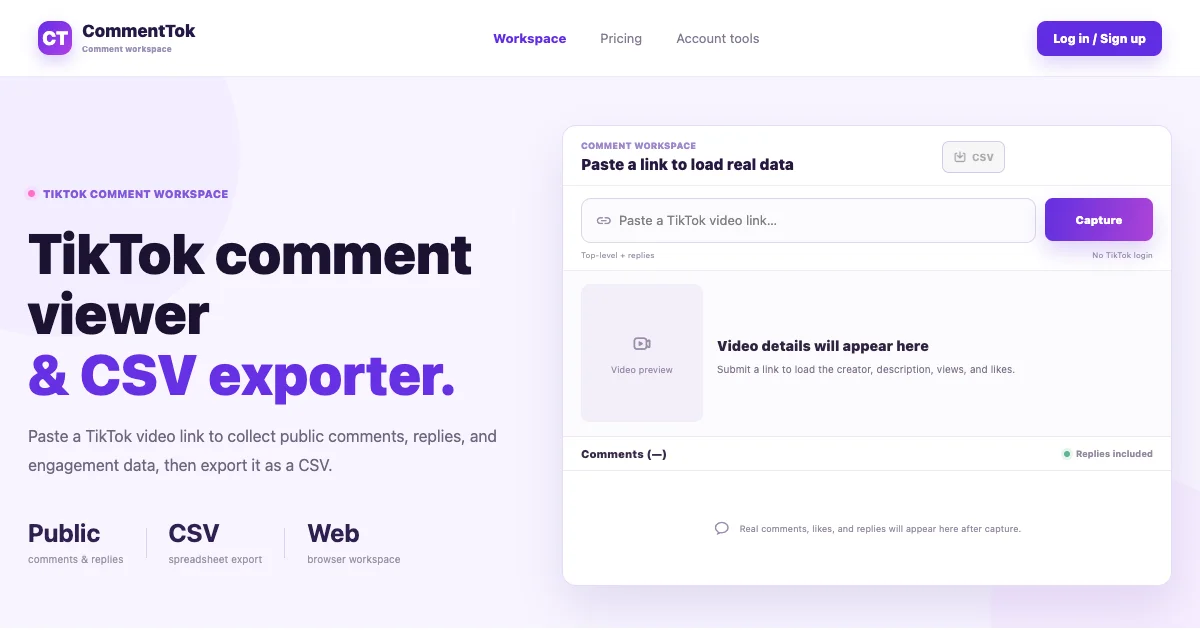
You need Google Sheets on a computer and either the practice CSV below or your own exported comments. No script, AI classifier, paid spreadsheet add-on, or live TikTok capture is needed for the exercise. If you still need a file, the TikTok CSV export walkthrough covers capture and download. This guide starts with the file and explains how to turn its comments into a review you can check.
Key Takeaways
- Practice on 12 fictional comments, with an answer key for every category.
- Keep original data separate from your working labels and review notes.
- Count one primary category per row so the pivot total can be checked against the input.
- Report findings about the reviewed rows, without presenting them as all viewers’ opinions.
Step 1: Download the practice data and define the question
Download the fictional practice CSV. All names, handles, comments, and like counts are invented for this exercise. The file is not a TikTok capture, a customer survey, or evidence of a market trend. It contains only four core columns so you can practice without handling real account details.
Our question is: Which questions about a reusable bottle should the creator answer next? That question determines the labels. A general positive-versus-negative score would not tell us whether to explain cleaning, shipping, or compatibility.
Here is a preview of the first four records; the download contains all 12:
| Example | Comment | Invented likes |
|---|---|---|
| 01 | How much is the bottle? | 2 |
| 02 | Can I put it in the dishwasher? | 3 |
| 03 | Do you ship to Canada? | 1 |
| 04 | Will it fit a bicycle bottle cage? | 4 |
For real work, write the source video URL, collection method, capture time, and inclusion rule in a separate Readme tab. For this file, write “Fictional practice data; 12 rows; no source video or collection time.” Do not invent provenance just to fill a cell.
Step 2: Import the CSV and preserve the original
In a blank spreadsheet, choose File → Import → Upload, select the CSV, choose an import location, and set the separator to comma. Import it as a new sheet and name that tab Raw. Google documents these controls in its data import guide.
Before confirming an import of real comments, inspect the conversion options. If offered, turn off conversion of text to numbers, dates, and formulas. Keep handles, IDs, and comment text literal; convert only fields you deliberately need as numbers in a working copy. CSV quoting alone is not a reason to let untrusted comment text execute as a formula.
Confirm that the practice data occupies A1:D13: four headers followed by 12 records. The comment containing “blue, too” must remain in one cell, as must the text containing quotation marks. There should be no extra record created by punctuation. Preserve Raw, and duplicate it into a tab named Review for the remaining steps.
Using an export from the TikTok comment viewer
CommentTok’s TikTok Viewer includes a comment workspace. Its implementation checked on September 15, 2026 exports author, handle, comment, likes, comment_id, parent_comment_id, video_id, is_reply, created_at, reply_count, source, and captured_at. Some metadata can be empty or depend on the capture source. For example, extension imports lack platform comment IDs and parent relationships. An exported column is not a promise that every row has a reliable value.
Keep every original field. Place analysis columns after them, rather than overwriting column E onward. The fixed ranges below are for the four-column practice file; adjust their letters and final row for your own table. Older four-column exports still work for manual theme counting, but cannot supply missing metadata retroactively.
The workspace requests pages with a limit of 20 and replies enabled, and supports loading more when the response allows it. Neither a completed request nor additional rows establishes full coverage or a random sample. Record what you actually reviewed.
Step 3: Create a small category codebook
In Review, enter primary_category in E1 and review_note in F1. Use one category per row, with a note for uncertainty or a second question. The following codebook is designed for this bottle example; revise it when your research question changes.
| Category | Include when the comment asks about |
|---|---|
| Price | Cost or discounts |
| Care | Cleaning or washing |
| Shipping | Delivery destinations or timing |
| Compatibility | Fit with other equipment or dimensions |
| Other | Clear content outside those four topics |
| Unclear | Meaning that cannot be resolved from the available text |
Select E2:E13, choose Insert → Dropdown, and add those six options. Leave multiple selections off. A controlled list helps avoid splitting one category into “Shipping,” “shipping question,” and “delivery.” Google’s dropdown instructions describe adding options and rejecting values outside the list.
For this exercise, use the first explicit question if a comment asks about two categories, and put the second in review_note. This is an editorial counting rule, not a fact about what the commenter cared about most. On a real project, choose and document a rule before tagging the whole dataset, then revisit earlier labels whenever you change it.
Step 4: Label the comments and compare your decisions
Read every row once before filling the dropdowns. Then apply the codebook. Use this answer key to reproduce the worked result, or hide it initially to practice making the decisions yourself.
| Example | Primary category | Reason or review note |
|---|---|---|
| 01 | Price | Direct cost question |
| 02 | Care | Dishwasher question |
| 03 | Shipping | Destination question |
| 04 | Compatibility | Fit with a bicycle cage |
| 05 | Price | Student discount |
| 06 | Care | Cleaning the lid seal |
| 07 | Shipping | Delivery timing |
| 08 | Other | Positive reaction, no question |
| 09 | Unclear | “Same here” needs missing context |
| 10 | Other | Color availability is outside this codebook |
| 11 | Price | Price first; shipping question retained in the note |
| 12 | Care | Meaning of a washing instruction |
Example 11 says, “How much is it, and do you ship to Canada?” Its primary label is Price under our stated rule, with “Also asks about shipping” in F12. The shipping count therefore excludes a secondary mention. This is why a primary-category pivot answers “How many rows received each label?” rather than “How often was every topic mentioned?”
Example 09 is deliberately unresolved. Do not infer approval, a complaint, or a topic from “Same here” without the parent conversation. A visible Unclear category makes that gap inspectable instead of hiding it inside a confident label.
If color questions matter to your task, add a Color category and relabel Example 10. Your pivot should then differ from the answer key. A defensible codebook matters more than matching a tutorial’s totals.
Step 5: Build the pivot table and reconcile its total
Select Review!A1:F13, then choose Insert → Pivot table and place it in a new sheet. In the editor, add primary_category under Rows, and comment under Values, summarized by COUNTA. Keep totals enabled. These controls and the requirement for headers follow Google’s pivot table documentation.
Using the supplied labels gives this result; display order can vary:
| Primary category | Fictional comment rows |
|---|---|
| Care | 3 |
| Compatibility | 1 |
| Other | 2 |
| Price | 3 |
| Shipping | 2 |
| Unclear | 1 |
| Grand total | 12 |
These counts are arithmetic from the invented file and our labeling rule, not observed TikTok statistics. Price and Care tie in this exercise. That tie does not establish that either topic is common outside these 12 records.
Before using your result, check that every nonempty comment has a category, no data rows sit outside the selected range, and the grand total matches the reviewed input. Blank comment cells are not counted by this COUNTA setup; inspect or document them before using the same method on a real export. If you add rows below row 13, extend the pivot’s source range.
To audit a count, double-click its value in the pivot. Sheets creates a sheet containing the contributing source rows, as described in the same Google documentation. Inspect those rows to see whether the category means what you intended. A pivot can accurately summarize inconsistent labels, so matching totals alone does not validate the analysis.
Step 6: Turn the categories into a reply plan
Use the counts to locate questions, then use the text to decide what to say. In Review, select the complete table and choose Data → Create a filter. Filter primary_category to Care to inspect its three comments. Google’s sorting and filtering guide explains filters and range sorting.
For the practice data, a useful Care brief would ask the product owner to confirm whether the bottle is dishwasher-safe, how to clean the lid seal, and what “hand wash” permits. The comments supply questions, not the answers. Do not invent cleaning advice from the category label.
If you use likes to decide which comment to inspect first, make sure the working values are numeric and sort the entire table, including your labels and notes. Sorting only one column would separate a comment from its category. Likes are an optional review aid, not a measure of agreement or unique people. The Unclear example has the highest invented like count, deliberately showing why popularity does not resolve meaning.
Write one row per proposed response in an Actions tab, with a category, a specific question, an owner, and a status. For instance: “Care — confirm lid-seal cleaning instructions — product owner — needs verification.” Keep secondary questions from review_note visible when preparing that list.
Report the scope alongside the findings
A report should name the reviewed set and explain its counting rule. For this exercise, a truthful statement is: “In a fictional 12-row practice file, Price and Care each received three primary labels. One mixed question was counted under its first topic, and one comment remained unclear.”
For a real capture, replace that sentence with actual counts and collection context. State whether you included replies, excluded blank records, merged captures, or removed duplicates. Where IDs are missing, identical text alone cannot establish duplicate identity. Where IDs exist, inspect their completeness and source before relying on them across files.
Avoid describing row counts as unique people, all comments, or customer demand. Repeated contributors, collection limits, missing thread context, and your own category rules all affect interpretation. Keep the original file and codebook so another person can reproduce the review.
Once the practice totals reconcile, apply the same workflow to a file from the CommentTok workspace. Start with one video and one clear question; expand the review only when you can preserve its context and check the labels.
Explore profiles, videos and comments
To choose a source before collecting comments, use the TikTok account viewer to review a public profile and its available videos, or the TikTok video viewer to inspect a specific video’s details. Return to the comment viewer to review the discussion. Browse all TikTok Viewer guides for related workflows.